Every sales call matters, and with SalesSheet.ai mobile calling, every call is automatically tracked in your CRM. No more forgetting to log calls or trying to remember conversation details hours later. The mobile app lets you dial contacts directly, records call metadata such as duration and outcome, and prompts you to add notes immediately after each call. Your entire call history is searchable and visible to your team.
Before You Start
- The SalesSheet.ai mobile app installed and signed in (installation guide)
- Contacts in your CRM with phone numbers saved
- Phone calling capability on your device (an active cellular or VoIP plan)
- Permission granted for SalesSheet to access your phone's dialer
- Notification permissions enabled for post-call note prompts
Open a Contact on Mobile
Navigate to the contact you want to call. You can find them by tapping the Contacts tab in the bottom navigation and searching by name, company, or phone number. Alternatively, you can access a contact from a deal's detail screen by tapping on their name in the associated contacts section.
For quick dialing, you can also use the Recents section at the top of the Contacts tab, which shows contacts you have recently interacted with. The AI assistant offers another path: open the chat and say "Call John at Acme Corp" to instantly locate the contact and initiate a call.
If the contact has multiple phone numbers (such as office, mobile, and direct), you will see all numbers listed in their detail view. Choose the most appropriate number for your call.
Tap the Call Button
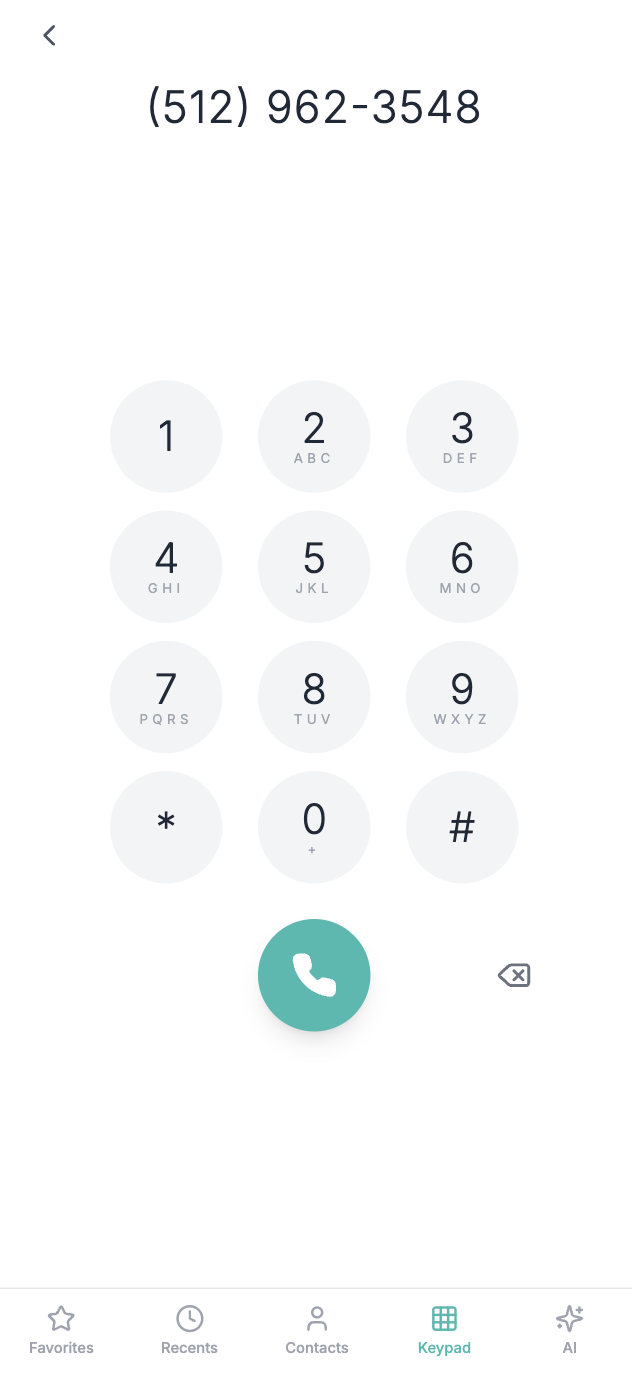
On the contact's detail screen, tap the phone icon in the quick action bar. If the contact has multiple phone numbers, a selector will appear asking you to choose which number to dial. Tap the desired number to initiate the call.
Before the call connects, SalesSheet displays a brief call preparation card with key information: the contact's name, title, company, last interaction date, any open deals, and recent AI-generated talking points. This gives you context in seconds so you can start the conversation informed and confident.
The call is placed through your device's native phone dialer. SalesSheet.ai does not route calls through a separate system, so call quality is identical to a regular phone call. Your carrier's standard calling rates apply.
Your Call Is Automatically Tracked in the CRM
As soon as the call connects, SalesSheet.ai begins tracking the call metadata automatically. The CRM records the call start time, the contact called, the phone number used, and the call direction (outbound). When the call ends, the call duration is logged as well.
This tracking happens in the background without any action required from you. The call activity appears in the contact's timeline, any associated deal timelines, and in your personal call log. Your manager and team members with access to the contact or deal can also see the call record.
SalesSheet also detects incoming calls from known contacts. If someone in your CRM calls you, the app matches the caller ID to your contact database and logs the inbound call automatically. This feature requires caller ID permission to be enabled in your device settings.
Add Call Notes After the Call
When the call ends, SalesSheet.ai sends a notification prompting you to add call notes. Tap the notification to open the call summary screen, which includes the contact name, call duration, and a notes field. Type a summary of the conversation, key decisions made, next steps discussed, or any commitments given.
You can also set the call outcome by selecting from options such as "Connected," "Left voicemail," "No answer," "Wrong number," or "Busy." This outcome data helps you track connection rates and identify the best times to reach specific contacts.
If you prefer hands-free note taking, tap the microphone icon in the notes field to dictate your notes using voice-to-text. The AI assistant can also help structure your notes: tap "Summarize with AI" and it will format your raw notes into organized bullet points with action items highlighted.
If you miss the notification, you can always add notes later by going to the contact's timeline, finding the call entry, and tapping "Add Notes." However, we recommend adding notes immediately while the conversation is fresh in your mind.
Review Your Call History
To see your complete call log, open the SalesSheet app and navigate to Activity > Calls from the main menu. This view shows all calls made and received through the CRM, sorted by date with the most recent calls at the top. Each entry displays the contact name, call direction (inbound or outbound), duration, outcome, and whether notes were added.
You can filter your call history by date range, outcome type, or contact. Tap on any call entry to view the full details including your notes. From here, you can also tap to call the contact again, send a follow-up email, or create a task based on the call discussion.
To review calls associated with a specific deal, open the deal detail screen and go to the Activity tab. Filter by "Calls" to see only phone interactions related to that deal. This is useful for reviewing conversation history before an important follow-up or preparing a deal review for your manager.
Pro Tip: Set Up Quick Dial Favorites
If you frequently call the same contacts, add them to your Favorites list in the SalesSheet app. Go to a contact's detail screen and tap the star icon to mark them as a favorite. Your favorites appear at the top of the Contacts tab for one-tap access. This is especially useful for key accounts or active deal contacts you speak with regularly throughout the week.
What to Expect
Mobile calling through SalesSheet.ai transforms your phone into a fully-tracked sales communication tool. Here is what the feature provides:
- One-tap calling from any contact's detail screen with pre-call context
- Automatic call tracking including time, duration, and direction
- Post-call note prompts with voice-to-text and AI summarization
- Call outcome tracking for connection rate analysis
- Inbound caller ID matching to recognize CRM contacts
- Searchable call history with filtering by date, outcome, and contact
- Call records visible in contact timelines, deal timelines, and activity feeds
All call data syncs to the web version immediately, giving your team complete visibility into communication activity across every contact and deal.
Troubleshooting
Calls are not being logged in the CRM
Ensure that you are initiating calls through the SalesSheet app rather than your native phone dialer. Calls placed directly from your phone's contacts or keypad will not be tracked. Also, check that the app has permission to access your phone's call log in your device settings (Settings > SalesSheet > Permissions). If calls still are not logging, try force-closing and reopening the app.
I am not receiving the post-call note prompt
Check that push notifications are enabled for the SalesSheet app in your device settings. On iOS, go to Settings > Notifications > SalesSheet and ensure "Allow Notifications" is turned on. On Android, go to Settings > Apps > SalesSheet > Notifications. Also verify that the "Post-Call Notes Reminder" toggle is enabled within the SalesSheet app under Settings > Notifications > Call Reminders.
Incoming calls from CRM contacts are not being identified
The inbound caller ID feature requires the SalesSheet app to have access to your phone's caller ID and contact permissions. On iOS, go to Settings > Phone > Call Blocking & Identification and enable SalesSheet. On Android, grant the "Phone" and "Contacts" permissions to the SalesSheet app. Note that caller ID matching only works for contacts that have a phone number stored in your CRM.
Voice-to-text is not working for call notes
Make sure the SalesSheet app has microphone permission enabled on your device. On iOS, go to Settings > SalesSheet > Microphone. On Android, go to Settings > Apps > SalesSheet > Permissions > Microphone. You also need an active internet connection for voice-to-text processing. If the dictation button is grayed out, try closing and reopening the call notes screen.