Your sales pipeline does not stop moving just because you stepped away from your desk. With the SalesSheet.ai mobile app, you can view your full pipeline, move deals between stages, update deal values, and even create new opportunities right from your phone. Whether you are heading out of a client meeting or reviewing your forecast on the train, mobile deal management keeps your pipeline accurate in real time.
Antes de Comenzar
- The SalesSheet.ai mobile app installed and signed in (installation guide)
- At least one pipeline configured in your SalesSheet.ai workspace
- Existing deals in your pipeline, or a contact to associate with a new deal
- An active internet connection for syncing changes (deals can be viewed offline)
Access the Pipeline View
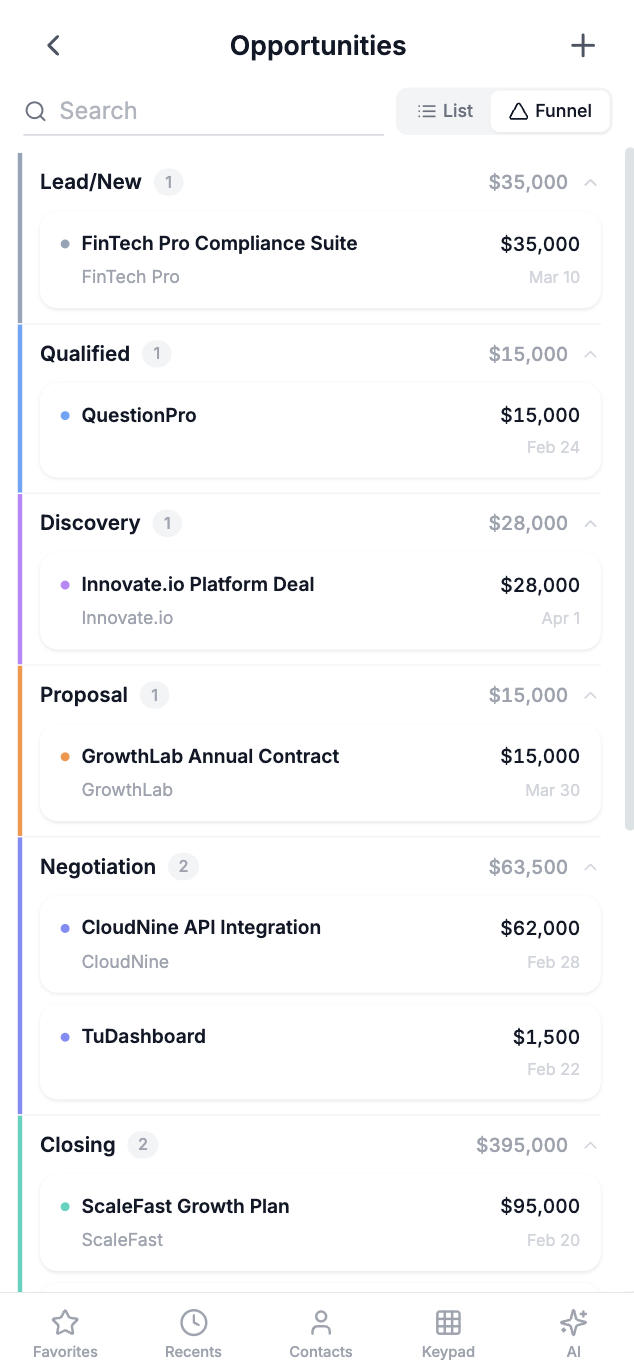
Open the SalesSheet.ai app and tap the Deals icon in the bottom navigation bar. This is represented by a funnel icon and is the third tab from the left. The deals tab opens to your default pipeline view, showing all active deals organized by stage.
The mobile pipeline uses a column layout that you can swipe horizontally to navigate between stages. Each stage column shows the stage name, the number of deals, and the total value at the top. Deals within each stage are displayed as cards showing the deal name, associated contact or company, deal value, and expected close date.
If you have multiple pipelines, tap the pipeline name at the top of the screen to open a dropdown menu where you can switch between them. The app remembers your last-viewed pipeline between sessions.
View Deal Details
Tap on any deal card in the pipeline to open the deal detail screen. This screen provides a comprehensive view of everything related to the deal, organized into several sections.
The header shows the deal name, current stage (displayed as a colored badge), deal value, and expected close date. Below the header, you will see quick action buttons for calling the primary contact, sending an email, or adding a note.
The Activity tab displays the full timeline of interactions related to this deal, including emails, calls, meetings, notes, and stage changes. Each entry is timestamped and attributed to the team member who performed the action. The Details tab shows all deal fields, associated contacts, and any attached files. The Tasks tab lists pending to-do items linked to this deal.
Move a Deal to a New Stage
There are two ways to change a deal's stage on mobile. The first method is from the pipeline view: long-press on a deal card until it lifts, then drag it horizontally to the desired stage column. Release the card to drop it into the new stage. A confirmation toast will appear at the bottom of the screen.
The second method is from the deal detail screen: tap the current stage badge at the top of the screen. A stage selector will appear showing all available stages in your pipeline. Tap the stage you want to move the deal to. You can optionally add a note explaining the stage change before confirming.
Both methods sync the change immediately to the web version. Stage changes are logged in the deal's activity timeline with a timestamp, the previous stage, the new stage, and the team member who made the change.
Update Deal Information
From the deal detail screen, tap the Edit button (pencil icon) in the top-right corner. This switches the view into edit mode where you can modify any deal field. Common updates include changing the deal value after a pricing discussion, adjusting the expected close date based on new information, or updating the probability percentage.
You can also add or remove associated contacts by scrolling to the contacts section and tapping "Add Contact" or swiping left on an existing contact to remove them. To add a note or log an activity without entering full edit mode, use the quick action buttons on the detail screen.
Tap Save when you are finished making changes. For quick updates, you can also use the AI assistant. Open the chat from the deal detail screen and say something like "Update this deal value to $75,000 and set the close date to March 15."
Create a New Deal
To create a deal from the pipeline view, tap the + button in the bottom-right corner. You will be prompted to enter the deal name, select a pipeline and initial stage, set a deal value, and choose an expected close date. Associate the deal with at least one contact or company by searching for them in the lookup field.
You can also create a deal directly from a contact's detail screen. Open a contact, go to their Deals tab, and tap "Create Deal." This method automatically associates the new deal with that contact, saving you a step.
For the fastest method, tell the AI assistant: "Create a new deal called Enterprise License for Acme Corp, value $50,000, expected close April 2026." The AI will create the deal, set all the fields, and associate it with the correct contact and company if they already exist in your CRM.
Pro Tip: Use the Summary View for Quick Pipeline Reviews
Tap the chart icon at the top of the Deals tab to switch to the pipeline summary view. This shows a visual breakdown of your pipeline by stage with total values, deal counts, and weighted forecast amounts. It is an excellent way to get a quick read on your pipeline health during a morning commute or before a team meeting, without needing to open your laptop.
Important: Marking Deals as Won or Lost
When you mark a deal as "Won" or "Lost" on mobile, this action is final and affects your pipeline metrics and reporting. The app will ask you to confirm before completing the action. For won deals, you can optionally enter the final close value and add a win reason. For lost deals, you will be prompted to select a loss reason from your configured options. These details help improve your forecasting accuracy over time.
Qué Esperar
Mobile deal management gives you the same pipeline control you have on the web, optimized for a touch interface. You can:
- View all your pipelines and deals with horizontal swipe navigation
- Drag and drop deals between stages or use the stage selector
- Update deal values, close dates, and probabilities on the fly
- Create new deals from the pipeline, a contact, or via the AI assistant
- View the complete activity timeline and task list for any deal
- Access pipeline summary and forecast views for quick reviews
All changes sync bidirectionally between mobile and web in real time. Your team sees updates immediately, regardless of which platform was used.
Solución de Problemas
My deals are not appearing in the pipeline view
Pull down on the deals screen to trigger a manual sync. If deals still do not appear, check that you are viewing the correct pipeline by tapping the pipeline name at the top. If you have filters applied (indicated by a filter badge icon), tap the filter icon and clear all filters. Go to Settings > Account > Force Sync if the problem persists after refreshing.
Drag and drop is not working to move deals
Make sure you are performing a long-press on the deal card first, not just tapping and dragging. Hold your finger on the card for about one second until you feel a haptic feedback and the card visually lifts. Then drag horizontally to the target stage. If the pipeline has many stages, you may need to drag toward the edge of the screen to scroll to stages that are not currently visible. Alternatively, use the stage selector method from the deal detail screen.
A deal I created on mobile is not showing on the web
Check your internet connection. The app queues changes when offline and syncs them when connectivity returns. Look for a sync indicator in the app header. If you see a pending sync icon, wait for the upload to complete. On the web, try refreshing the page with a hard refresh (Ctrl+Shift+R or Cmd+Shift+R). If the deal still does not appear after several minutes, contact support at andres@salessheets.ai.
I accidentally moved a deal to the wrong stage
Simply move the deal again to the correct stage using either the drag-and-drop method or the stage selector. All stage changes are recorded in the deal's activity timeline, so you will have a complete audit trail. There is no undo button, but moving the deal to the correct stage immediately corrects the pipeline. The previous accidental move will remain in the timeline as a historical record.